
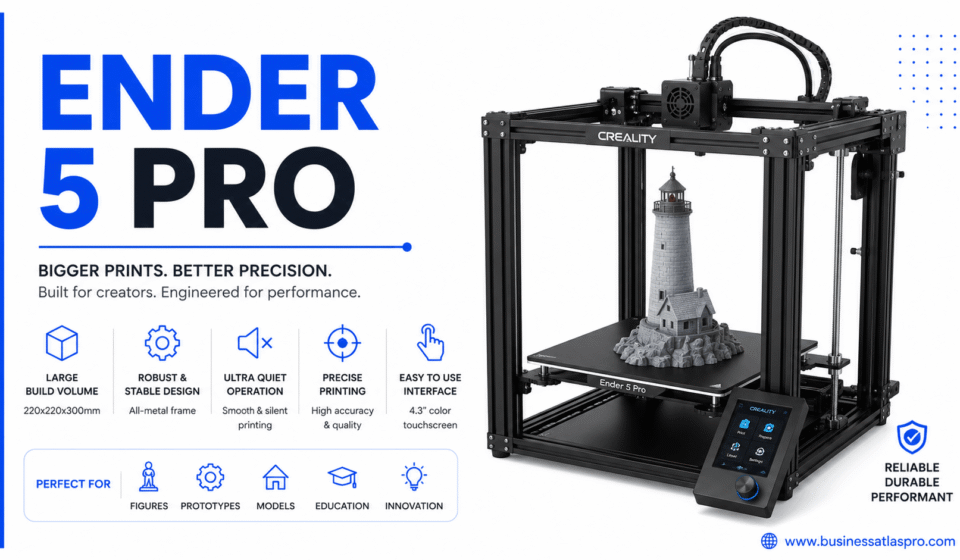

The Ender 5 Pro sits in a genuinely interesting spot in the 3D printing world. It’s not the cheapest option. It’s not the flashiest. But it’s one of those printers that people buy, set up once, and keep using for years without major complaints. If you’re trying to figure out whether it’s worth your money, this guide is for you.
What the Ender 5 Pro Actually Is
The Ender 5 Pro is a Cartesian-style FDM 3D printer made by Creality. It was released as an upgrade over the standard Ender 5. The “Pro” tag isn’t just marketing — it comes with a handful of meaningful hardware improvements over the base model.
The most notable upgrade is the extruder. The Ender 5 Pro uses a metal extruder arm instead of plastic. That sounds minor. But plastic extruder arms crack over time, especially under the tension needed for flexible filaments. Metal holds up considerably better.
It also ships with a Capricorn PTFE tube. This is a higher-quality bowden tube that handles higher temperatures more cleanly. It reduces the risk of heat creep — a common issue where heat travels too far up the hotend and causes filament jams.
The silent mainboard is another standout. The Ender 5 Pro uses Creality’s V1.1.5 silent board with TMC2208 stepper drivers. The printer runs noticeably quieter than non-silent board versions. If you’re running it in a bedroom or shared workspace, this matters.
The build volume is 220 x 220 x 300 mm. That’s a solid print area — taller than most entry-level printers in its class.
The Ender 5 Pro Build: Cube Frame and Bed Design
This is where the Ender 5 Pro genuinely stands apart from the more common Ender 3 series.
Most entry-level printers use a moving bed that travels front-to-back on the Y axis. The Ender 5 Pro uses a cube frame design where the bed only moves up and down on the Z axis. The printhead handles X and Y movement.
Why does that matter? Two reasons.
First, stability. The bed isn’t sliding back and forth constantly during a print. That reduces vibration and ringing artifacts in printed parts — especially at faster speeds.
Second, taller prints benefit hugely. On a moving-bed printer, tall models can wobble as the bed carries them through rapid Y movements. On the Ender 5 Pro, the bed drops steadily downward. There’s far less risk of a tall print toppling mid-job.
The build plate itself is a glass-like surface—it ships with a BuildTak-style surface on some versions or a plain glass bed on others. Adhesion is generally reliable. PLA sticks well when the bed is at 60°C and PETG at 70–80°C. ABS typically needs an enclosure that the Ender 5 doesn’t ship with, though it can be added.
In my experience, the cube frame design makes the Ender 5 feel more like a proper mid-range machine than an entry-level printer. First layers come out consistently flat once you’ve leveled the bed properly.
Setting Up the Ender 5 Pro for the First Time
Assembly is straightforward. The printer ships partially assembled. The frame corners are pre-built. You’re mostly connecting the top gantry to the base, running cables, and mounting the display.
Expect 30 to 60 minutes for assembly. The manual is functional but not exceptional. The Creality official support page has updated assembly guides and firmware downloads that are worth checking before you start.
Bed Leveling
The Ender 5 Pro uses manual bed leveling with four corner knobs and a center spring. It doesn’t have automatic bed leveling out of the box.
The standard paper method works fine. Slide a sheet of paper under the nozzle at each corner and adjust until you feel slight resistance. Then check the center. Repeat until all five points are consistent.
This takes patience the first few times. But once it’s set, the Ender 5 holds its level well. The cube frame doesn’t flex the way cantilever designs do.
First Print
Creality includes a test file on the SD card. Print it first. It’s a small dog model—takes about 30 minutes in PLA. If it comes out clean, your calibration is solid. If there are issues, you’ll spot them on something small rather than a 6-hour print.
Recommended Settings for the Ender 5 Pro
Out of the box, the Ender 5 Pro prints PLA reliably between 200 and 210°C nozzle temperature and 60°C bed temperature. Those are good starting points.
For slicer software, Ultimaker Cura has a built-in profile for the Ender 5 Pro. Load it, set your filament type, and it handles most of the settings automatically. That’s the easiest route for beginners.
Layer height: 0.2 mm is the standard. Go to 0.12mm for detail prints. 0.28mm for fast, less detailed parts.
Print speed: 50 mm/s is a comfortable default. The Ender 5 can push to 80 mm/s without significant quality loss, but test before printing anything important at high speed.
Retraction: With a Bowden setup, retraction needs to be longer than direct-drive printers. Start at a 5–6 mm retraction distance at 45 mm/s speed. Adjust based on stringing results.
Infill: 15–20% for decorative or non-functional parts. 40–60% for structural parts. 80%+ for parts under real mechanical stress.
Filament Compatibility on the Ender 5 Pro
The stock hotend handles most common filaments well.
PLA: The easiest. Prints reliably, minimal warping, great detail. The default choice for most prints.
PETG: Works well on the Ender 5 Pro. Slightly more flexible and heat-resistant than PLA. Good for functional parts. Requires slightly higher temperatures—230–240°C nozzle.
TPU: The metal extruder arm helps here. TPU is a flexible filament that requires controlled feeding. A bowden setup adds some complexity with flexible filaments. It’s doable but needs slower speeds — around 20–30mm/s — and some tuning.
ABS: Possible but tricky without an enclosure. ABS warps with temperature fluctuations. You’d need to enclose the printer and raise the ambient temperature. Not the Ender 5 Pro’s strong suit without modification.
ASA, Nylon: Similar enclosure requirements to ABS. Possible with the right setup, but well beyond beginner territory.
For most users, PLA and PETG cover 90% of what they want to print. The Ender 5 Pro handles both confidently.
Upgrades Worth Considering for the Ender 5 Pro
The Ender 5 Pro has a strong modding community. But not every upgrade is worth it at the start.
BLTouch Auto Bed Leveling
This is the most impactful upgrade for most users. The BLTouch sensor automates bed leveling by probing the surface before each print. It compensates for any slight unevenness automatically.
Installation requires flashing new firmware and connecting a few cables. It’s an intermediate-level modification but well-documented for the Ender 5 Pro specifically.
Direct Drive Conversion
The Ender 5 Pro’s Bowden setup is competent but limiting for flexible filaments. A direct drive kit mounts the extruder directly on the printhead. This improves retraction control and makes TPU and flexible filaments much easier to handle.
Popular options include the Micro Swiss direct drive kit and various community-designed mounts available on Thingiverse.
Part Cooling Fan Upgrade
The stock cooling fan is adequate for PLA. But better part cooling improves overhang performance and detail on curved surfaces. A stronger 5015 blower fan with a redesigned duct is a popular and low-cost upgrade.
Ender 5 Pro vs. Ender 3 V2: Which Should You Buy?
This comparison comes up constantly. And it’s worth addressing directly.
The Ender 3 V2 is cheaper. It’s also smaller and has a massive user community. But it uses a moving bed design. For smaller prints, the difference is minimal. For taller or larger prints, the Ender 5 Pro’s stable bed makes a real difference.
The Ender 5 Pro also ships with better hardware out of the box—the metal extruder, Capricorn tube, and silent board are things you’d pay extra to add to an Ender 3 V2.
If budget is the primary concern, the Ender 3 V2 is the right call. If you want a printer that’s ready to handle more varied projects without immediate upgrades, the Ender 5 Pro is the smarter starting point.
The All3DP comparison guide covers both machines in more technical detail if you want a side-by-side breakdown.
Common Issues and How to Fix Them
No printer is without quirks. The Ender 5 Pro has a few recurring ones.
Stringing: Thin threads of filament between parts. Fix by increasing retraction distance, reducing print temperature by 5°C, or increasing travel speed. Most stringing disappears with a few test prints and tuning.
Layer shifting: Sudden misalignment mid-print. Usually caused by print speed being too high, loose belt tension, or the printhead catching on a previous layer. Check belt tightness first.
First layer adhesion problems: Either the nozzle is too far from the bed or the bed temperature is too low. Re-level carefully and ensure bed temperature is stable before starting.
Inconsistent extrusion: Check for partial clogs in the nozzle or kinks in the PTFE tube. Also verify the extruder arm spring tension isn’t too loose.
I’ve noticed that most Ender 5 Pro issues come down to bed leveling and retraction settings. Get those dialed in, and the printer runs reliably for long stretches without much intervention.
Is the Still Worth Buying?
The 3D printing market moves fast. Newer printers with auto-leveling and faster speeds have appeared since the Ender 5 Pro launched. So this is a fair question.
The answer depends on what you value. This offers a proven, stable platform with strong community support, plentiful upgrade paths, and genuinely good print quality for its price range. It’s not the fastest printer. It doesn’t have auto-leveling by default. But it’s reliable, well-built, and extensively documented.
For someone entering 3D printing who wants a machine they can grow with and learn on, the Ender 5 Pro still makes a strong case for itself. The cube frame, the silent board, and the metal extruder give it a solidity that cheaper options don’t match.
Pick up some quality PLA, spend an evening on assembly and calibration, and you’ll have a printer that earns its place on your desk for a long time.