

Title: Dark Mode Google Assistant: How to Enable It
Meta Description: Learn how to enable dark mode for Google Assistant on Android and iPhone. Step-by-step tips, battery benefits, and fixes for common issues included.
Dark Mode Google Assistant: How to Enable It
If you’ve been trying to turn on dark mode Google Assistant and keep hitting dead ends, you’re not alone. It’s one of those settings that should be obvious but isn’t. The interface goes dark, the background turns black, and suddenly using your phone at night doesn’t feel like staring into a flashlight. Here’s everything you need to know to actually get it working.
Why Dark Mode Google Assistant Matters
Dark mode isn’t just an aesthetic choice. There are real, practical reasons people switch.
The most immediate one is eye comfort. Bright white screens in low-light environments cause noticeable eye strain. Switching to a darker interface reduces that significantly. The American Academy of Ophthalmology has noted that screen brightness and contrast contribute to digital eye strain, especially during nighttime use.
Battery life is the other big one. If your phone has an OLED or AMOLED display, dark pixels are actually turned off rather than lit up. That means dark mode genuinely saves power. Not massively, but it adds up across a full day of use.
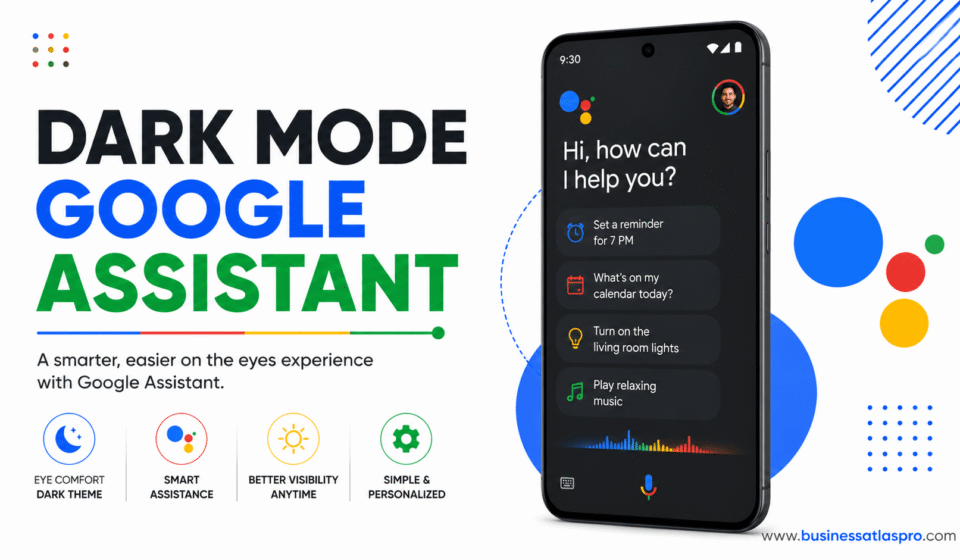
And honestly, dark mode Google Assistant just looks better on modern smartphones. The dark background with the colored waveform when the assistant is listening feels cleaner and less jarring than the white version.
I’ve noticed that after switching to dark mode across most of my apps, going back to a bright white interface actually feels uncomfortable now. Your eyes adapt faster than you’d think.
How Dark Mode Google Assistant Works on Android
Android is where this is most straightforward. Google Assistant follows the system-wide dark theme setting on Android 10 and above.
Here’s the step-by-step:
Step 1: Open your phone’s Settings app.
Step 2: Go to Display (sometimes called Display & Brightness).
Step 3: Toggle on Dark Theme or Dark Mode.
That’s it. Once system dark mode is on, Google Assistant picks it up automatically. Open the assistant, and the interface should be dark.
But there’s a catch. Some Android versions or phone manufacturers handle this differently. On Samsung devices running One UI, for example, you set dark mode in the Display settings. But the assistant might not update until you restart the app or the phone.
If it’s not updating, try this. Open Google Assistant settings by long-pressing the home button or saying “Hey Google, open Assistant settings.” Look for a General section. Some versions have a standalone theme option there. Set it to Dark or System Default.
What to Do If It’s Still Not Switching
Force-stop the Google app. Go to Settings, then Apps, find Google, and hit Force Stop. Reopen the Assistant. This clears any cached interface state that might be holding onto the light theme.
Also check that your Google app is updated. Older versions of the app don’t always honor the system dark mode setting properly. Open the Google Play Store and update the Google app directly.
Enabling Dark Mode Google Assistant on iPhone
An iPhone is a slightly different process. Google Assistant on iOS is a standalone app. It doesn’t automatically follow iOS system dark mode in all versions.
Here’s what to do:
Step 1: Open the Google Assistant app on your iPhone.
Step 2: Tap your profile picture or the account icon in the top right corner.
Step 3: Tap Settings, then General.
Step 4: Look for a Theme or Appearance option. Select Dark.
If you don’t see a theme option, the app may be set to follow iOS system settings by default. In that case, go to your iPhone’s Settings, tap Display & Brightness, and select Dark. The Assistant app should follow that.
iOS 13 and above support system-wide dark mode. If you’re on an older version, you may not have this option at all. Updating iOS through Settings — General — Software Update is the fix there.
Using System-Wide Dark Mode to Control Google Assistant
Both Android and iOS now support system-level dark mode. And the cleanest approach is to let Google Assistant inherit that setting. This way, every app that supports dark mode switches together. You don’t have to manage each one individually.
On Android 10 and above, the system dark theme is in Display settings. On iOS 13 and above, it’s under Display & Brightness. Both platforms also let you schedule dark mode. You can set it to switch automatically at sunset or at a custom time.
This is genuinely useful if you use dark mode Google Assistant mainly in the evenings. Set a schedule and forget about it. The assistant switches with everything else.
The Android developer documentation explains how apps are expected to respond to the system dark theme flag. Google Assistant, being a Google product, is well-optimized for this.
Dark Mode Google Assistant on Smart Displays and Nest Devices
Here’s something most guides skip. Google Assistant runs on more than just phones.
Smart displays like the Google Nest Hub have their own display settings. But they don’t have a traditional dark mode toggle the way phones do.
The Nest Hub dims its screen at night based on ambient light sensors or your set schedule. This isn’t the same as a dark mode, but it serves a similar purpose — reducing brightness in low-light conditions.
For voice-only devices like the Google Nest Mini or Nest Audio, there’s no screen at all. Dark mode isn’t applicable. The assistant’s behavior is identical regardless.
If you’re primarily using Google Assistant on a smart display, focus on the ambient display brightness settings in the Google Home app instead. That’s where you’ll find the relevant controls.
Troubleshooting Dark Mode Google Assistant Issues
Even after following all the steps, some users run into persistent issues. Here are the most common ones and what to do about them.
Assistant Keeps Reverting to Light Mode
This usually happens when the Google app updates and resets preferences. After an update, go back into Assistant settings and recheck the Theme option. Set it to Dark or System Default again.
Dark Mode Only Applies to Part of the Interface
Some screens within Google Assistant — like search results or web content panels — pull from the Google Search interface rather than the Assistant itself. Those panels may not go fully dark even when the Assistant interface does.
This is a known inconsistency. Google has been gradually improving this, but it’s not perfectly unified yet.
The Theme Option Is Missing From Settings
Not every device or Google account sees the same settings interface. If the Theme option isn’t visible, use the system dark mode approach instead. That’s the most reliable method across all devices and regions.
Battery and Eye Health: Does Dark Mode Actually Help?
This comes up a lot. And the answer is nuanced.
On OLED screens, dark mode does save battery. Google published internal research suggesting meaningful power savings from dark mode on Android. On LCD screens, the savings are minimal because the backlight stays on regardless of what color pixels are displaying.
For eye health, the benefit depends on your environment. In a dark room, a dark interface is genuinely easier on the eyes. In a bright room, a light interface often has better contrast and is actually easier to read.
The Harvard Health Blog has covered how blue light exposure from screens affects sleep quality. Dark mode reduces the overall light emitted. But if you want to specifically reduce blue light, consider enabling your phone’s Night Mode or Warm Color setting alongside dark mode.
Using dark mode Google Assistant as part of a broader low-light routine—darker screen, night shift color, and reduced brightness—gives you the most noticeable benefit.
Quick Tips for Getting the Best Experience
A few small things make the dark mode experience noticeably better.
Match your wallpaper. A bright white wallpaper with dark mode apps is jarring. A dark or neutral wallpaper ties the whole interface together.
Adjust brightness manually. Auto-brightness doesn’t always dial down far enough at night. Manually lower it alongside dark mode for maximum comfort.
Use scheduled dark mode. Set it to switch at sunset. You won’t have to think about it, and your eyes will thank you during late-night assistant queries.
Keep the Google app updated. Dark mode behavior in Google Assistant has improved with updates. Staying current means fewer glitches and a more consistent experience.
Dark mode Google Assistant is one of those small quality-of-life improvements that genuinely sticks once you’ve used it. The setup takes two minutes. And once it’s on, going back to the bright white version feels like a step backward.