
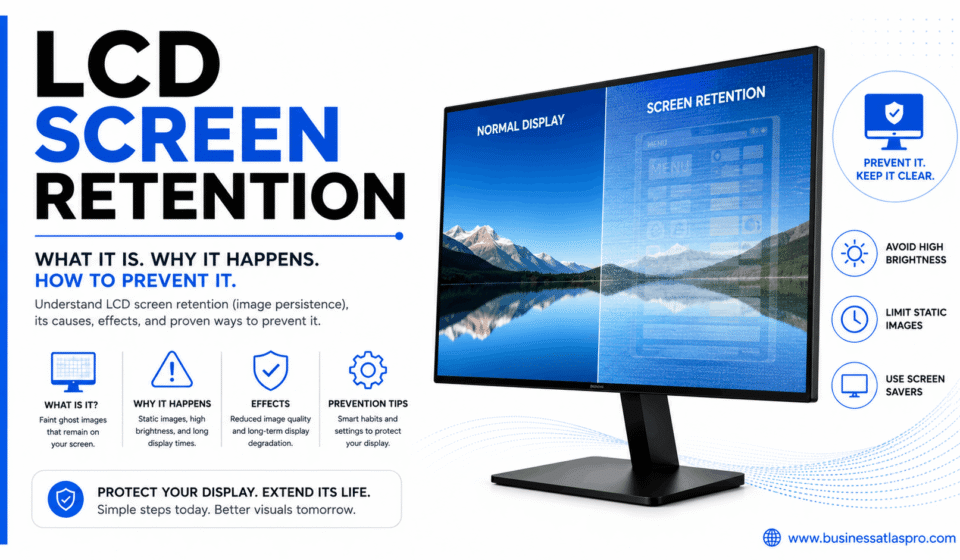

You’re watching a movie and suddenly notice a faint outline of your desktop icons burned into the corner of the screen. That’s LCD screen retention—and it’s more common than most people realize. It’s also one of those problems that looks alarming but is often fixable if you catch it early enough.
Let me walk you through what’s actually happening inside your display and what you can do about it.
What LCD Screen Retention Actually Is
LCD screen retention happens when a static image displayed for too long leaves a ghost of itself behind. You switch to a new screen, but the old image is still faintly visible underneath.
It looks like burn-in. But it’s usually not. True burn-in is permanent physical damage. LCD screen retention is typically temporary — the crystals inside the display get “stuck” in a position from displaying the same image too long. Given time or the right treatment, they can recover.
The liquid crystal layer inside an LCD panel is made of molecules that orient themselves in response to electrical signals. When those molecules hold one orientation for extended periods, they develop a kind of memory for that position. That’s what you see as retention.
It’s different from OLED burn-in, which involves physical degradation of organic light-emitting materials. LCD retention is more of a temporary electrical fatigue. The distinction matters because it affects whether recovery is possible.
What Does It Actually Look Like?
It varies. Sometimes it’s a faint shadow of a taskbar at the bottom of the screen. Sometimes it’s the ghost of a HUD element from a game you’ve been playing for hours. Navigation bars on phones. Static logos on monitors left on news channels all day.
The ghost image is usually most visible against plain backgrounds — a grey or white screen makes retention obvious. On complex, colorful content, it might be nearly invisible. That’s why some people don’t notice it until they open a blank document or a solid-colored wallpaper.
What Causes LCD Screen Retention
The root cause is always the same: a static image held on screen for too long at high brightness. But a few specific habits accelerate it.
High Brightness Settings
Brightness amplifies the electrical stress on liquid crystal molecules. Running your display at maximum brightness continuously makes retention develop faster. This is especially relevant for laptop screens and desktop monitors left on all day at 100% brightness.
Most displays don’t need to run at full brightness indoors. Calibrating your screen to a comfortable 120–200 nits for indoor use reduces strain on the panel. That’s a range that display calibration professionals generally recommend for typical viewing environments.
Static UI Elements
Operating systems are actually quite careful about this now. Windows and macOS have screen savers and auto-sleep settings precisely because static interfaces cause retention over time. But people routinely disable these features without realizing the tradeoff.
A taskbar sitting in the same position, at the same brightness, for eight hours a day will eventually leave a mark. Same goes for browser toolbars, game HUDs, and any other persistent UI element.
Extended Gaming Sessions
This is one of the most common culprits. Games often display fixed elements — health bars, minimaps, ammo counters — in the same screen position for hours at a time. Competitive gamers who put in long sessions are disproportionately likely to encounter LCD screen retention on their monitors.
IPS and VA panels — two common LCD subtypes — handle extended static images differently. VA panels tend to be more susceptible to retention than IPS, though both can develop it under the right conditions.
How to Fix LCD Screen Retention
Here’s the good news: in most cases, LCD screen retention responds to treatment. It’s not guaranteed, but success rates are reasonably high if you act before the retention becomes severe.
Turn the Screen Off and wait.
The simplest fix. Power down your display completely—not sleep mode, fully off—and leave it for several hours. Overnight is better. Without any electrical signal running through the crystals, they gradually relax back to a neutral position.
This works surprisingly often for mild cases. If the retention appeared after a single long session, a few hours of rest might be all it needs.
Run a Pixel Refresh or stuck pixel fix.
There are several tools and videos designed specifically for this. They cycle rapidly through colors—red, green, blue, white, and black—at high speed. The idea is to force the stuck crystals to move through multiple positions, breaking up the “memory” they’ve developed.
JScreenFix is a free browser-based tool that does exactly this. You run it on the affected area for 10–20 minutes. It’s not guaranteed, but it’s one of the most widely recommended first-line treatments for LCD screen retention.
YouTube also has several long-format pixel refresh videos in 4K that serve the same purpose. Search for “LCD pixel refresh” and run one full-screen for 30–60 minutes on the affected screen.
Adjust Brightness and Vary the Content
After running a fix tool, drop your brightness to around 50% and use the display normally with varied content for a day or two. Don’t leave anything static on screen. The goal is to encourage natural variation across all the pixels.
Heat Can Help—Carefully
Warmth loosens liquid crystal molecules, which can speed up recovery. Some people report that running a bright white screen at moderate brightness for an extended period—the gentle heat generated by the backlight—helps accelerate recovery.
Don’t apply external heat. Don’t put anything warm on the screen. Let the display generate its own ambient warmth naturally during a recovery session.
When LCD Screen Retention Becomes Permanent
This is the harder conversation. If retention has been developing gradually over months and you’re only now noticing it, recovery is less certain.
Prolonged electrical stress can eventually cause physical changes to the alignment layers inside the panel—not just temporary molecular fatigue. At that point, what you’re seeing behaves more like true burn-in. It may not fully recover regardless of what you try.
A few signs that you’re dealing with something more permanent:
- The ghost image is equally visible in all content types, not just plain backgrounds
- Running fix tools shows no improvement after multiple sessions
- The affected area has slightly different color accuracy even when the ghost isn’t obvious
At that stage, panel replacement becomes the realistic option. For laptops, iFixit has repair guides for most models if you’re comfortable with DIY repairs. For monitors, a warranty claim is worth attempting if the display is relatively new.
How to Prevent LCD Screen Retention Going Forward
Prevention is straightforward once you know what drives the problem.
Use Auto-Sleep and Screen Savers
Re-enable whatever power management settings you disabled. A screen that goes dark after 10–15 minutes of inactivity can’t develop retention during those idle periods. It’s the single most effective preventive measure.
Windows and macOS both have granular controls for this under display and power settings. Set sleep timers and actually use them.
Lower Your Brightness
You probably don’t need your screen as bright as it’s currently set. Indoor environments with controlled lighting work fine at 30–50% brightness on most displays. Reducing brightness reduces the electrical load on the crystals and slows the development of retention significantly.
Vary Your Wallpaper and Layout
Static wallpapers that perfectly align with where your taskbar or dock sits create consistent retention risk. Using dynamic wallpapers — ones that change throughout the day — reduces cumulative stress on any single screen area.
Some people rotate their desktop icons periodically or use a centered dock layout that they occasionally shift. These are small habits that reduce the static load on vulnerable screen areas.
Take Breaks During Long Gaming or Work Sessions
Every hour or two, switch to varied content or let the screen sleep for a few minutes. It doesn’t take long. Even brief variation is enough to prevent crystals from settling into a fixed position.
I’ve noticed that people who use their monitors primarily for productivity with varied browser content rarely develop retention. It’s the single-use cases—a gaming monitor running the same game for six hours daily or a work monitor with a static dashboard—that develop problems fastest.
LCD Screen Retention vs. OLED Burn-In: The Key Difference
People confuse these regularly, and the distinction matters for how you respond.
OLED burn-in involves physical degradation of organic compounds inside each pixel. As those compounds age unevenly—bright static elements aging faster than others—the difference becomes permanent. There’s no fix for true OLED burn-in.
LCD screen retention is a different mechanism. The backlight and pixel structure aren’t degrading — the liquid crystal molecules are temporarily stuck. Recovery is possible.
The practical test: run a pixel refresh tool or leave the screen off overnight. If you see meaningful improvement, you’re dealing with LCD screen retention. If there’s no change at all after multiple recovery attempts, the damage may be more permanent regardless of panel type.
Realistic Expectations for Recovery
Most mild-to-moderate LCD screen retention cases do improve with treatment. Full recovery isn’t always possible, especially for cases that have developed slowly over time. But even partial improvement is meaningful.
Run fix tools a few times. Give the display rest periods. Lower your brightness going forward. In many cases, the ghost image fades to the point where it’s no longer visible under normal use — even if a plain white background can still reveal a faint trace.
That’s a realistic success outcome. Not perfect, but functional. And with the prevention habits in place, it won’t get worse.
Also Read: Dolphin Radar: What It Is and How It Works